Introduction
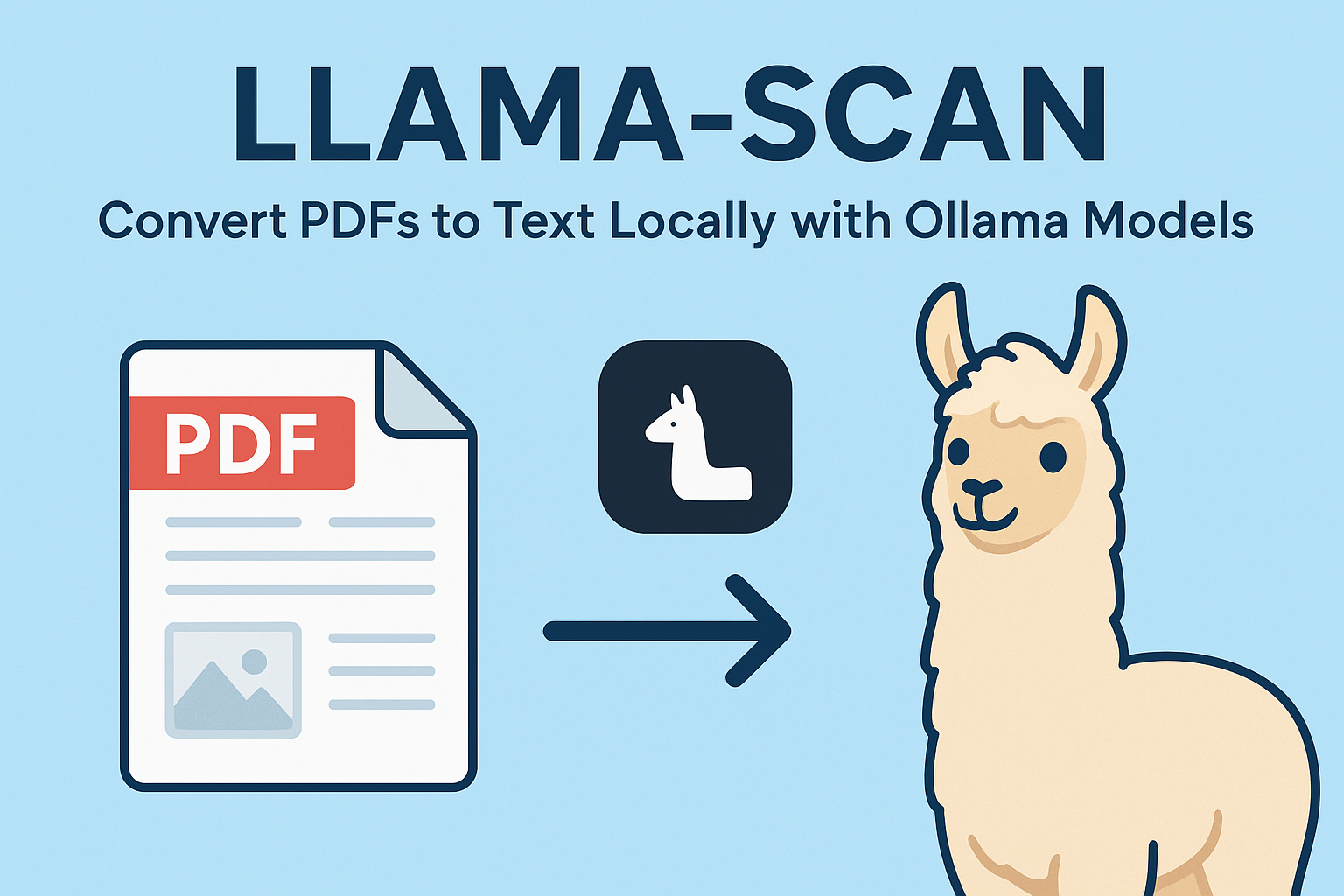
In an era where data privacy and AI integration are paramount, extracting meaningful information from documents, especially PDFs, remains a critical challenge. Traditional OCR tools often fall short when dealing with complex layouts, diagrams, or handwritten content. Enter Llama-scan PDF converter, a powerful open-source tool that leverages Ollama’s multimodal AI models to convert PDFs into detailed, readable text entirely offline.
Unlike cloud-based solutions that charge per token or risk exposing sensitive data, Llama-Scan processes your PDFs locally, giving you full control over your documents. Whether you’re a researcher, developer, or knowledge worker, this tool offers a private, cost-effective, and intelligent way to extract not just text, but also rich descriptions of images and diagrams.
In this comprehensive guide, we’ll explore how Llama-Scan works, its technical foundations, real-world use cases, and why it’s emerging as a game-changer in local AI-powered document processing.
What Is Llama-Scan?
A Local, AI-Powered PDF-to-Text Converter
Llama-scan PDF converter is a lightweight command-line tool designed to extract text and visual content from PDF files using multimodal large language models (LLMs) via Ollama. It doesn’t rely on traditional OCR alone; instead, it uses advanced AI models like qwen2.5vl:latest—a vision-language model capable of understanding both text and imagery within documents.
Developed by ngafar and hosted on GitHub, Llama-Scan bridges the gap between document digitization and semantic understanding, making it ideal for processing scanned documents, research papers, technical manuals, and more.
Why Llama-Scan Stands Out
Traditional OCR solutions struggle with complex document layouts, but Llama-Scan’s multimodal approach offers several key advantages:
- Complete Privacy: All processing happens locally—no data leaves your machine
- Zero Ongoing Costs: No API fees or token limits
- Advanced Understanding: Interprets diagrams, charts, and visual context
- Flexible Processing: Customizable output options and model selection
- Offline Operation: Works without internet connectivity
Core Features and Capabilities
Comprehensive Document Processing
Llama-Scan excels at handling various PDF types, from text-heavy documents to image-rich presentations. The tool’s ability to process diagrams, charts, and illustrations sets it apart from traditional OCR solutions that might struggle with complex visual content.
Flexible Output Options
Users can customize their processing workflow with several powerful options:
- Custom output directories for organized file management
- Model selection to optimize performance based on available hardware
- Image retention for reference and quality control
- Page range specification for targeted processing
- Image resizing to balance quality and processing speed
How Llama-Scan Works: Behind the Scenes
1. Step-by-Step Conversion Pipeline
Understanding Llama-Scan‘s processing pipeline helps you optimize its performance for your specific needs.
2. PDF Page Extraction
The tool first splits the PDF into individual pages, converting each page into an image (typically PNG) while preserving layout and visual elements.
3. Image Preprocessing (Optional)
You can resize images using the --width flag to balance quality and processing speed. Resizing helps reduce memory usage without significant loss of detail.
4. Multimodal Model Inference via Ollama
Each image is sent to a locally running Ollama instance, which uses a vision-capable model (like qwen2.5vl) to interpret the content. This includes:
- Recognizing printed and handwritten text
- Describing charts, graphs, and diagrams
- Understanding context and relationships between elements
5. Text Output Generation
The extracted text is saved as .txt files, one per page, in the specified output directory. Optionally, all text can be merged and printed to stdout.
6. Optional Image Retention
Using the --keep-images flag, intermediate images can be preserved for debugging or archival purposes.
This entire process runs offline, ensuring no data leaves your machine—ideal for handling confidential or proprietary documents.
Getting Started with Llama-Scan
1. Installation and Setup Guide
Prerequisites
- Python 3.10 or higher
- Ollama installed and running locally
Install Ollama and Pull the Model
Whether you’re working locally or in a cloud environment like Google Colab, here’s how to set up LlamaScan:
Install System Dependencies
sudo apt update
sudo apt install -y pciutils  # Required for GPU detection (NVIDIA/AMD)
Note: pciutils includes lspci, which helps Ollama detect GPUs. Without it, Ollama may fall back to CPU-only mode.
Install Ollama
curl -fsSL https://ollama.com/install.sh | shThis downloads and installs the Ollama binary to /usr/bin/ollama.
Start Ollama Server Programmatically
Since systemctl isn’t available in many cloud notebooks or containers, use Python to launch the Ollama daemon in the background:
import threading
import subprocess
import time

def run_ollama_serve():
    subprocess.Popen(["ollama", "serve"])

# Start Ollama server in a background thread
thread = threading.Thread(target=run_ollama_serve)
thread.start()
time.sleep(5)  # Give the server time to initialize
This mimics the behavior of systemctl start ollama in environments without systemd.
Pull the Multimodal Model
Once the server is running, pull the default model:
ollama pull qwen2.5vl:latestYou’re now ready to use Llama-Scan—even in headless or notebook-based environments!
Install Llama-Scan
Choose your preferred installation method:
# Using pip
pip install llama-scan

# Or using uv (faster dependency resolution)
uv tool install llama-scan
2. Practical Usage Examples
Basic Document Conversion
Convert a PDF to text using default settings:
llama-scan report.pdfOutput will be saved in the output/ folder containing:
- Text folder:
merge.txt,page_1.txt,page_2.txt, etc. - Image folder: Contains extracted images, charts, or graphs
Advanced Processing Options
Process Specific Pages
Extract only pages 1 to 5:
llama-scan report.pdf --start 1 --end 5Optimize for Speed
Improve processing speed on high-resolution scans:
llama-scan document.pdf --width 1000Use Alternative Models
Swap in another Ollama-supported multimodal model:
llama-scan document.pdf --model llava:13bStream Output to Terminal
For quick inspection without file output:
llama-scan document.pdf --stdoutTechnical Considerations
Hardware Requirements
- Minimum: 8GB RAM for smaller models
- Recommended: 16GB+ RAM for optimal performance
- GPU: Optional but recommended for faster processing
Model Selection
Different models offer varying capabilities:
- qwen2.5vl:latest: Best overall performance and accuracy
- qwen2.5vl:3b: Faster processing on limited hardware
- llava models: Alternative vision-language options
Performance Optimization Tips
- Use
--widthto resize images for faster processing - Process documents in batches to amortize model loading time
- Keep intermediate images only when necessary to save storage
- Monitor system resources to find optimal settings
Troubleshooting Common Issues
Memory Constraints
If processing fails due to insufficient RAM, try:
- Using smaller models (
qwen2.5vl:3b) - Reducing image width (
--width 800) - Processing fewer pages at once
Processing Speed
To improve performance:
- Ensure GPU acceleration is working
- Adjust image resolution settings
- Close unnecessary applications to free up resources
The Future of Local Document Processing
As AI moves to the edge, tools like Llama-Scan represent a fundamental shift toward privacy-preserving, cost-effective document processing. The combination of local inference and multimodal understanding opens new possibilities for:
- Enterprise document workflows that maintain complete data sovereignty
- Research applications requiring sensitive data handling
- Personal productivity tools that work offline
- Automated content analysis without cloud dependencies
More Details on Llama-Scan: Official GitHub
Conclusion
Llama-scan PDF converter represents a significant leap forward in how we interact with PDFs and documents. By combining local AI inference through Ollama with multimodal understanding, it goes beyond simple OCR to deliver context-rich, human-readable text from complex documents, all without sacrificing privacy or incurring ongoing costs.
As organizations increasingly prioritize data privacy and cost control, Llama-Scan offers a compelling alternative to cloud-based solutions. Its ability to understand visual content, process documents offline, and provide unlimited usage makes it an invaluable tool for researchers, developers, and businesses alike.
Whether you’re digitizing historical archives, processing technical documentation, or extracting insights from visual content, Llama-Scan empowers you to own your data pipeline and unlock the full potential of your documents. In an age where AI capabilities are rapidly advancing, having these tools available locally ensures you’re prepared for whatever document processing challenges lie ahead.

Md Monsur Ali is a tech writer and researcher specializing in AI, LLMs, and automation. He shares tutorials, reviews, and real-world insights on cutting-edge technology to help developers and tech enthusiasts stay ahead.